
Before applying the theme
Installing or uploading a theme and applying it to the live storefront are separate steps. Review the available preview and agree on setup, testing and release timing before applying it. Existing custom code, settings and integrations need assessment before a theme change.
After purchasing our theme, Niche will show up in the "My Themes" section of your BigCommerce account
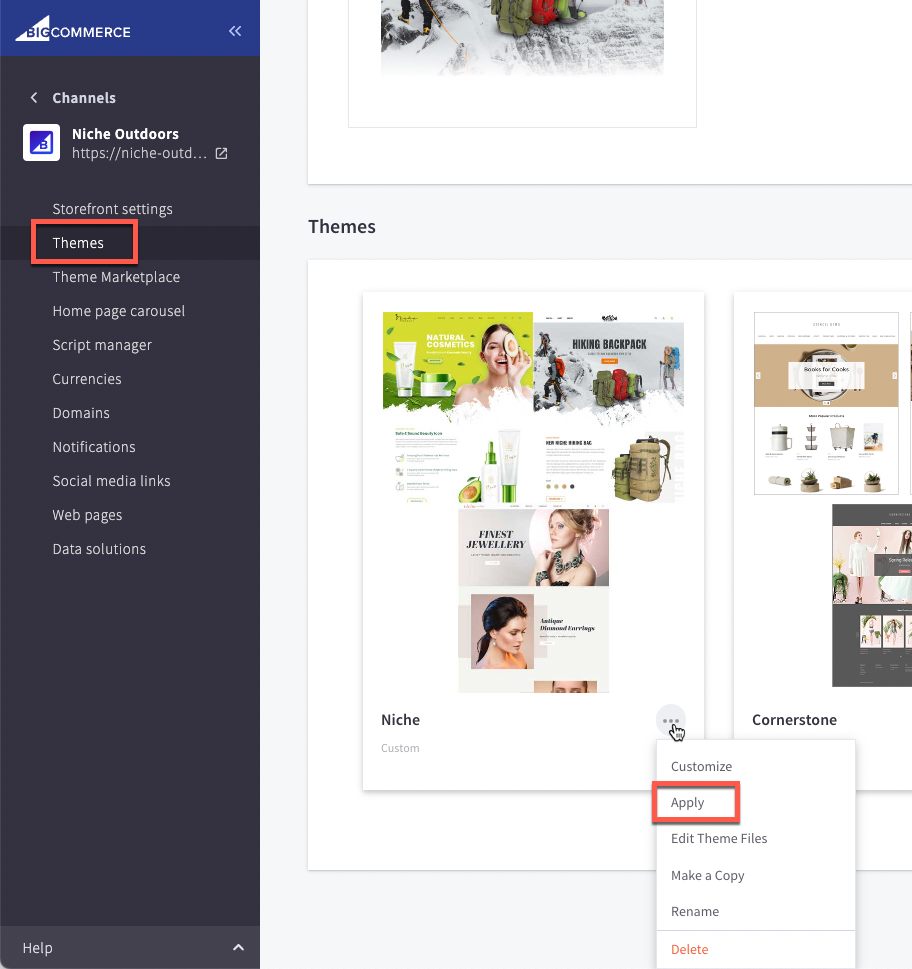
- Login to your Bigcommerce store’s admin page.
- Go to Storefront > My Themes.
- If the theme is not already present in your account, (otherwise skip to step 6) and you have the Theme Zip File, Click the Upload Theme button. On popup, please click the Select theme from your computer.
- Choose the zip file Niche - x.x.x.zip from your computer to start installing the theme.
- Wait to complete the upload.
- After the uploading process, the new theme appears. Click on the Apply button as shown below.
- Choose the required variation from those available in your theme release
- Refresh your store's home page and you will see the installed theme.